

Appearance
Table Chart
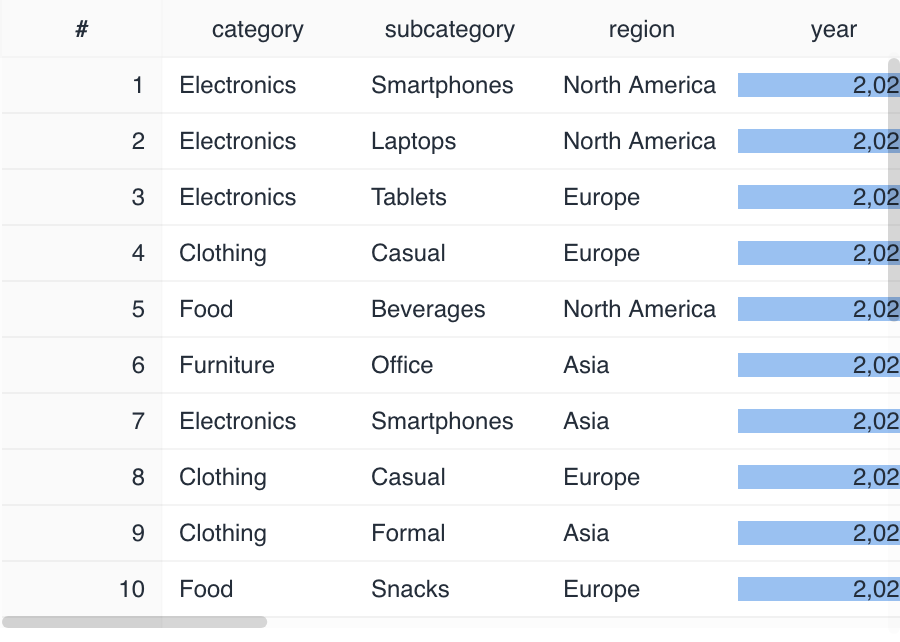
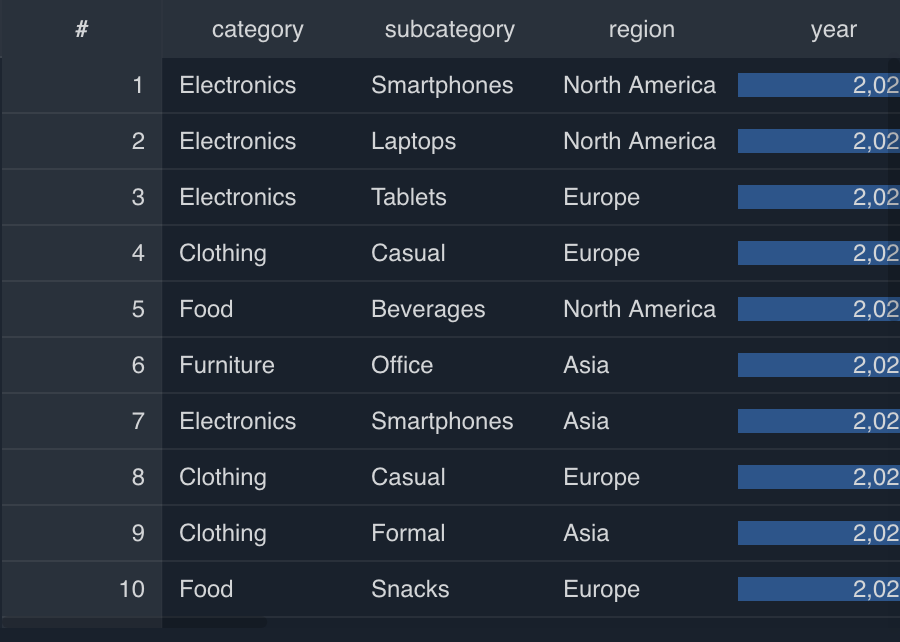
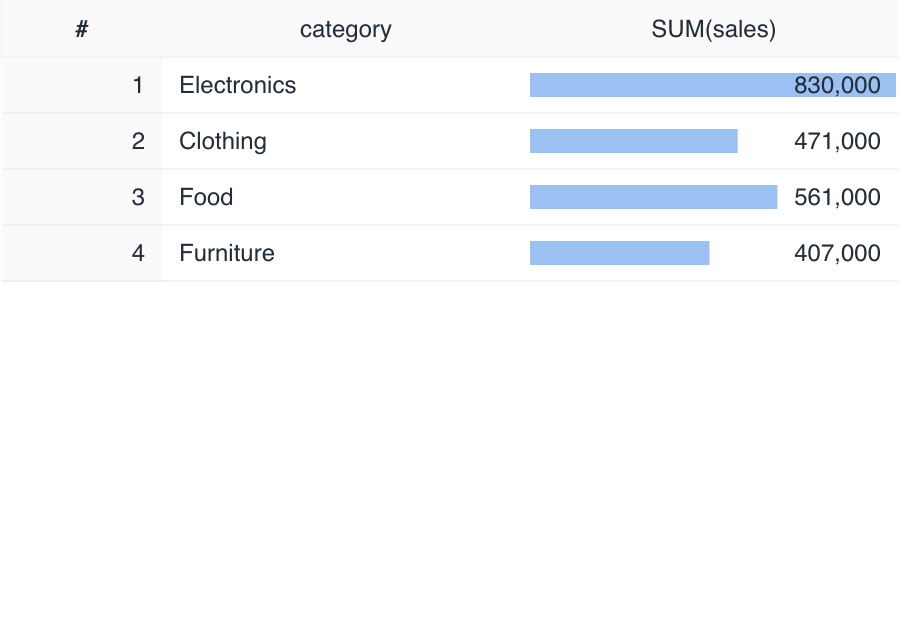
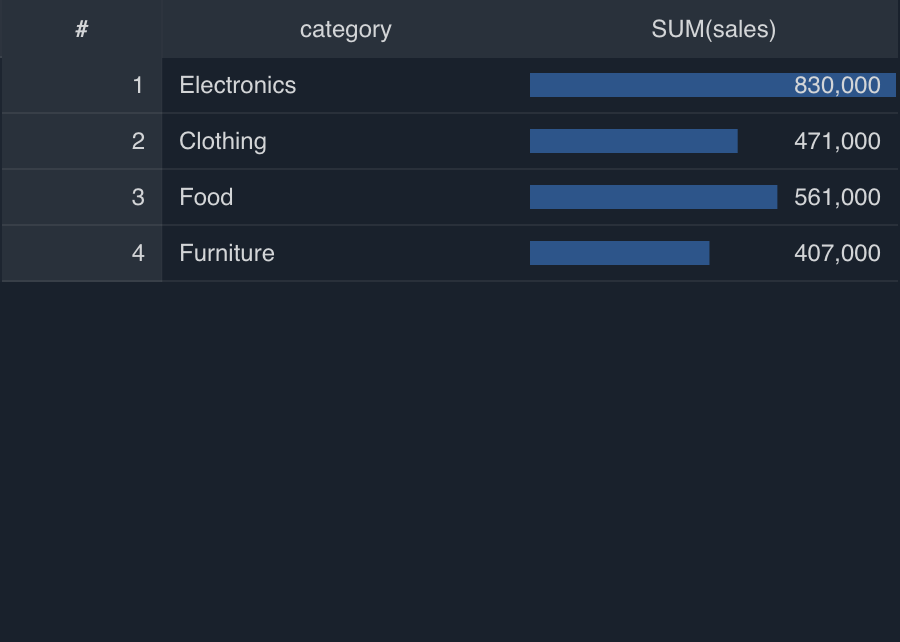
Table Chart displays data as a table. The source type lets you choose between a raw table that shows fetched rows as-is, and an aggregated table that groups and aggregates data.
Drawing types
Table Chart supports the following drawing types.
Specification
Source type
Table Chart has two source types, and the aggregation and display specification differs depending on which one you select.
| Source type | Description | Column role |
|---|---|---|
| Raw data (raw table) | Displays fetched rows as-is. | Select the columns to display. |
| Aggregated data (aggregated table) | Groups and aggregates data. | Group by (dimension), Values (metric). |
Tips
Image display
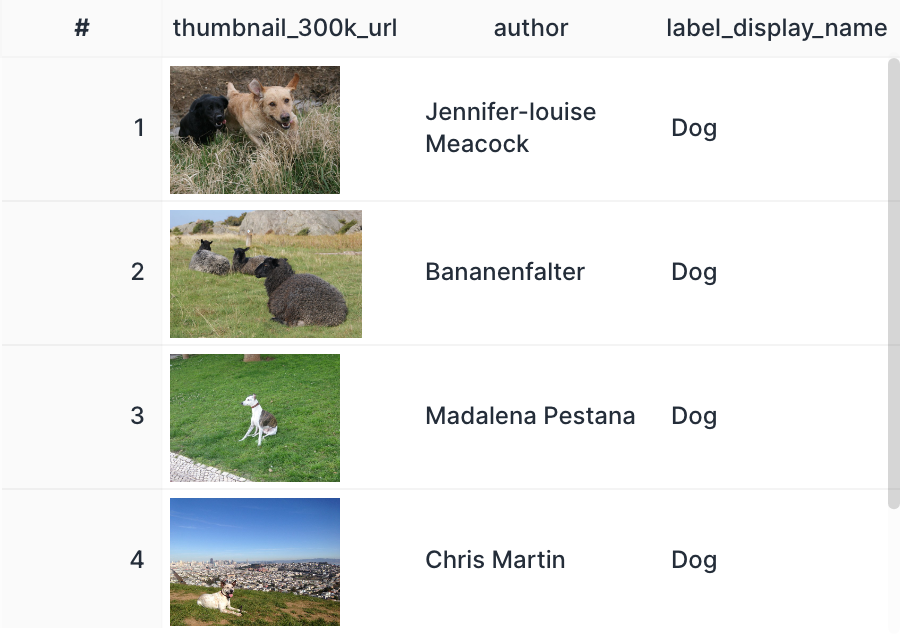
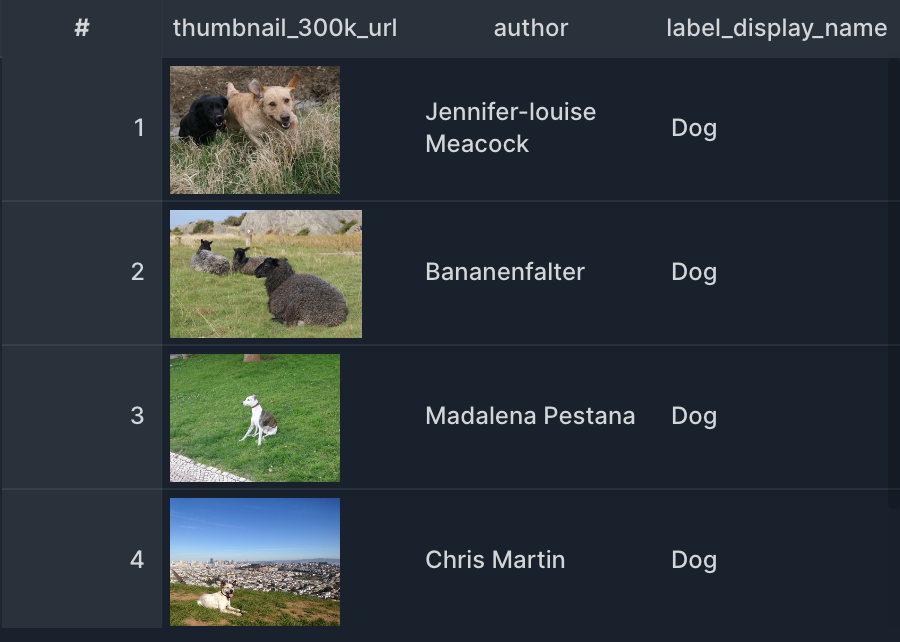
If a column's value is an image URL, you can display the image within the table chart by turning on Enable in advanced settings > Column settings > Image URL preview.
Link display
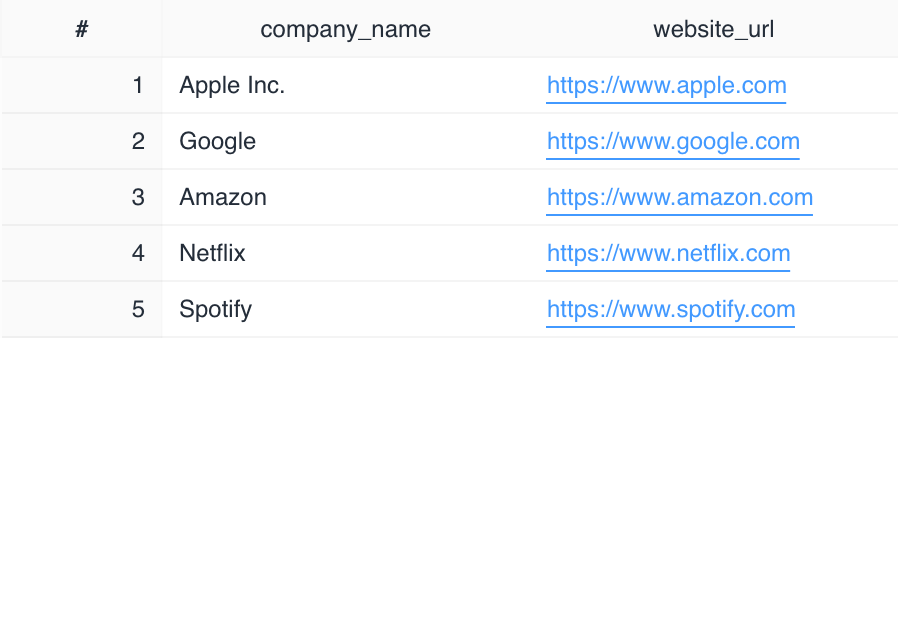
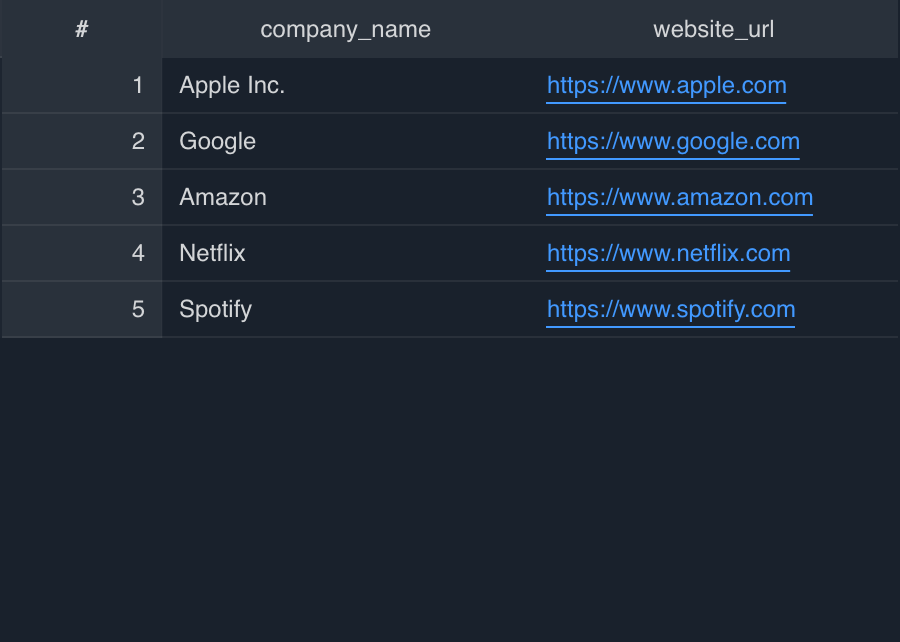
If a column's value is a URL, you can show a link in the table chart that opens the URL in a new tab by turning on advanced settings > Column settings > Enable link URL.
Creating a link to a report with parameters
By dynamically generating a URL with SQL, you can pass each row's data as a parameter to another report page.
Create the report and get the URL.
- Set a parameter on the destination report, then copy the URL from the browser's address bar.
- Example URL:
https://app.codatum.com/workspace/{workspace_id}/report/{report_id}/{page_id}
- Example URL:
- Checking the parameter ID: note the ID of the parameter widget in the report (for example:
68f369edf5e6f69036b8872d).
- Set a parameter on the destination report, then copy the URL from the browser's address bar.
Create a URL column with SQL.
Use the
CONCATfunction to generate a URL that includes each row's data as a parameter, and insert it into the chart.Example with a single parameter (country name):
sqlCONCAT( 'https://app.codatum.com/workspace/{workspace_id}/report/{report_id}/{page_id}?cdm.params.{parameter_id}=', country -- the column name to pass as the parameter ) AS link
Enable the link in the table chart.
- Open the target column under advanced settings > Column settings, and turn on Enable link URL.
Notes
- Replace
countrywith the name of the database column you want to pass as the parameter. - The current value of a parameter widget can't be referenced in SQL (only fixed values or column values).
- When a user selects a cell, the report opens in a new tab.
- For details on setting up parameters, see Specifying values from a URL.