

Appearance
Pivot Table
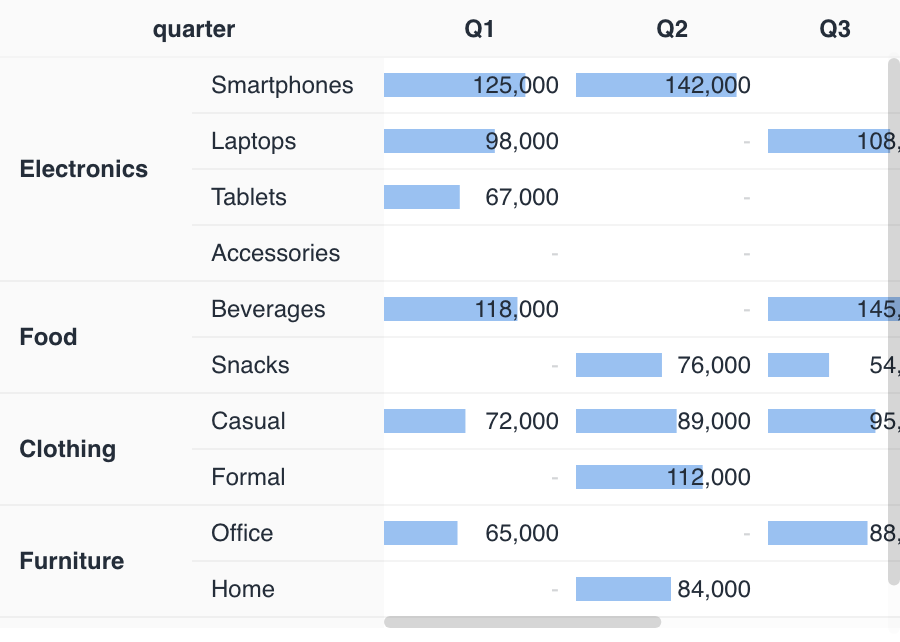
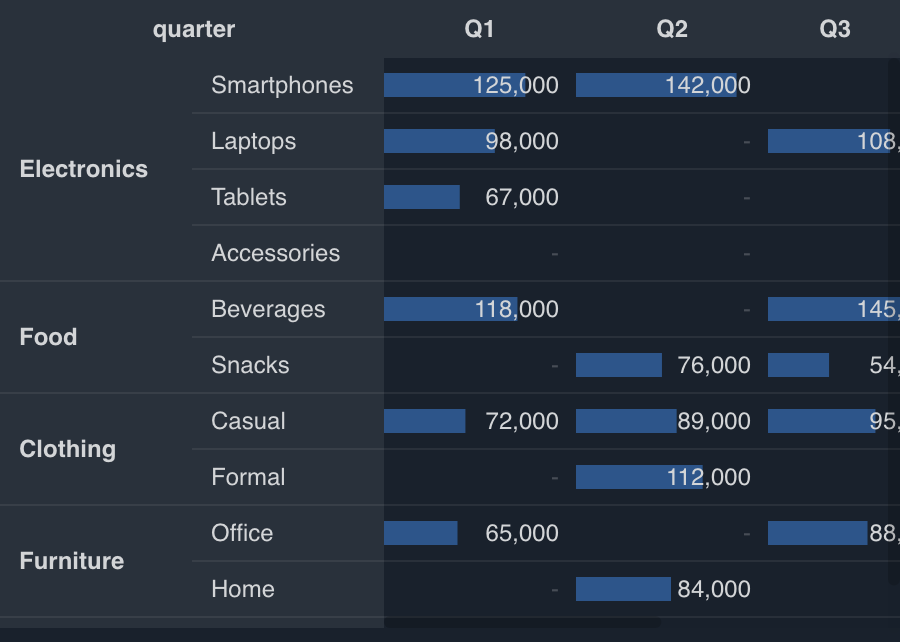
Pivot Table cross-tabulates a value (metric) against rows and columns (dimensions) and displays the result as a two-dimensional table.
Specification
Field roles
Pivot Table treats rows and columns as dimensions and the value as a metric, and shows the aggregated result as a table.
| Item | Role | Notes |
|---|---|---|
| Rows | Dimension | One or more. |
| Columns | Dimension | Optional. |
| Value | Metric | Supports numeric and string metrics. |
You can control the order with row sort / column sort. See Filter, sort, and limit for details.
Tips
Drill down
Pivot Table can display rows hierarchically and let you collapse them.
Set this up as follows.
- Set multiple row fields.
- In the chart settings, set 2 or more fields for Rows, such as a major category and a minor category.
- Example: state (major category) → city (minor category).
- Switch to tree display.
- In advanced settings > Layout > Default hierarchy type, choose Tree.
- Grid: the conventional table format.
- Tree: displays a hierarchical structure. You can expand and collapse it using the toggle icon.
- In advanced settings > Layout > Default hierarchy type, choose Tree.
- Set the initial state to collapsed (optional).
- Checking Collapse by default collapses all levels of the hierarchy on initial display.
Additional notes:
- This can only be set when there are 2 or more row fields.
- Report viewers can freely expand and collapse the hierarchy.
Differences by processing method
Pivot Table shows different results depending on whether in-memory processing was used or SQL-based processing was used.
- With in-memory processing
- There's no limit on the number of rows or columns, and all aggregated data can be displayed.
- With SQL-based processing
- Rows and columns are each limited to a maximum of 30.
- If there are more than 30, the excess is grouped into a row or column labeled
(Others). - When both rows and columns are specified, the display is limited to roughly 31 × 31 = 961 items due to the rendering cap (1000 rows).
The fixed limits are also documented in Limits.